
View your office floor schedule and learn about additional Floor Schedule features your office may have made available to you.
Your office chooses which Floor Schedule features are available to agents.
These may include schedule emails, upcoming-shift reminders, Requests Off, and PickShift. Check with your scheduler to see which features your office uses.
Each office decides which features best fit the way it operates.
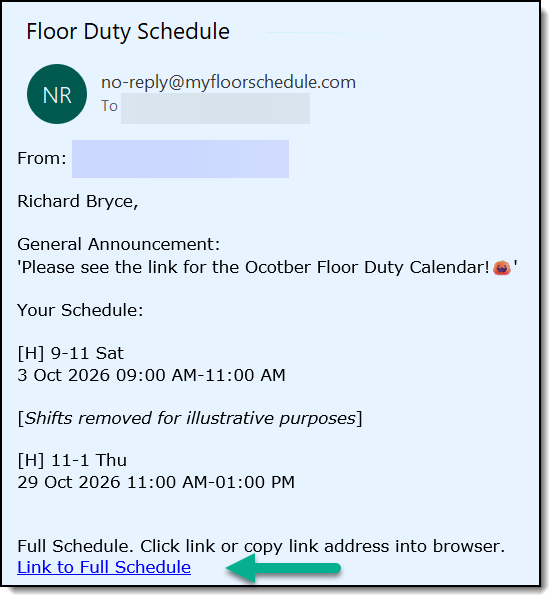
Your office may email your floor assignments when a new schedule is ready. The email can also include a direct link to the full schedule.
Your office may send automatic email reminders before your upcoming floor shifts.
Your office may allow you to submit dates and times when you cannot work. Your scheduler determines how availability requests are handled.
If your office offers PickShift, you can use it to add yourself and remove yourself from the schedule.
Not sure what's available to you? Check with your scheduler. Each office chooses the Floor Schedule features that best fit the way it operates.
The Floor Schedule Phone App gives you convenient access to your office schedule from your phone. If your office uses PickShift, you can use PickShift from the app too.
Available for iPhone and Android.

When your office emails the new schedule from Floor Schedule, your email will include a list of your upcoming floor-duty assignments plus an optional direct link to the complete office schedule.
Click Link to Full Schedule and Floor Schedule opens the appropriate schedule and highlights your name so your assignments are easy to find.
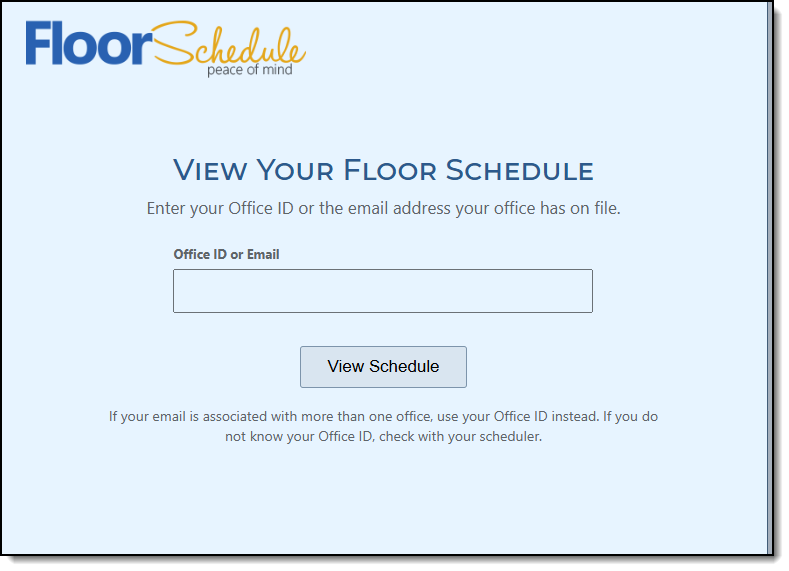
If you don't have a schedule email or reminder handy, you can still go directly to Floor Schedule's agent schedule page.
1Open View My Floor Schedule
2Enter your Office ID or email
3View the current schedule
View My Floor Schedule
myfloorschedule.com/agents
If your scheduler uses this feature, let your scheduler know when you cannot work floor duty. Be as specific as possible about the dates, days and times you are unavailable.
Your scheduler reviews your availability and enters the appropriate Requests Off into Floor Schedule before the schedule is generated.
The more availability Floor Schedule has to work with, the more opportunity it has to fill the office's shifts and distribute floor duty fairly.
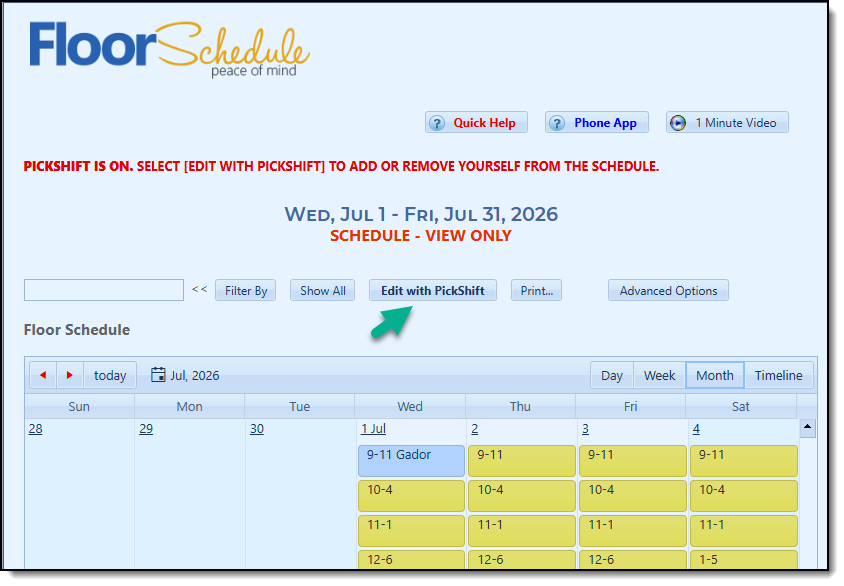
If your office uses PickShift, you can use it to interact with available floor shifts rather than only viewing the schedule. When PickShift is enabled, your schedule page will also show an Edit with PickShift button that takes you directly to PickShift.
On PickShift, entering your email or Office ID without a User ID lets you view the office schedule. Entering your User ID as well takes you into PickShift.
Forgot your Office ID or User ID? If your email address is on file, PickShift can email the IDs associated with that address. If your scheduler has not yet assigned a User ID, the email provides your Office ID and tells you to contact your scheduler for the User ID.
Floor Schedule keeps it simple for the agent, with multiple paths to their schedule.
View your schedule anytime: Use the button above or go to myfloorschedule.com/agents.
View your schedule from your phone: Use the Floor Schedule Phone App.
View your schedule from your scheduler's email: Click on the included link.
View your schedule from your upcoming shift reminder email: Click on the included link.
If PickShift is enabled: Go to PickShift.com or use your Floor Schedule Phone App.
Want your real estate floor duty shifts to appear alongside your personal appointments? Floor Schedule lets you subscribe to your assigned shifts in Google Calendar, Apple Calendar, or Microsoft Outlook.
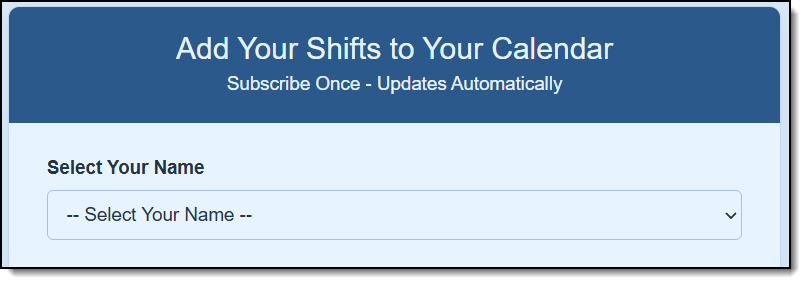
Set up your calendar subscription once using the My Calendar option in your Floor Schedule schedule view. When your office scheduler adds, changes, or removes your floor duty assignments, your subscribed calendar updates automatically the next time your calendar service refreshes the subscription. You don't need to download and import a new calendar file after every schedule change.
Your scheduler controls which schedule dates are available to agents. Because Google Calendar, Apple Calendar, and Outlook refresh subscriptions on their own schedules, changes may not appear immediately. For the most current assignments, check Floor Schedule directly.
It's another convenient way to stay informed — in addition to the five schedule-access options above.